Best Mouse Settings for CS2
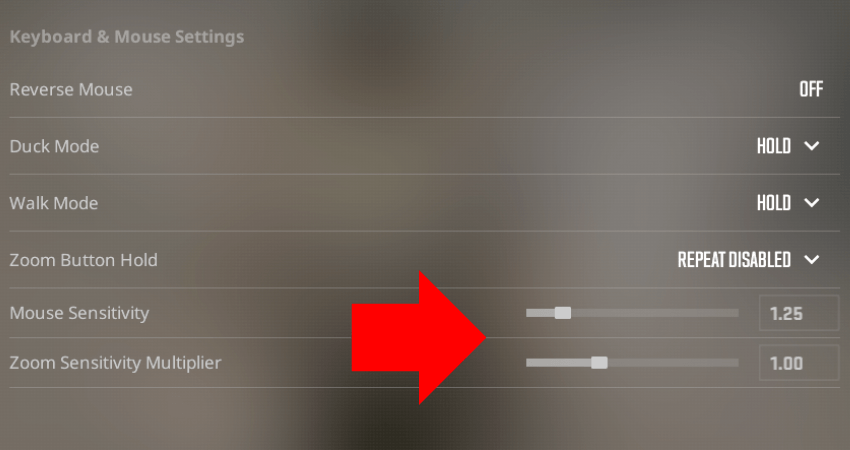
Understanding Mouse Settings
Your mouse configuration is the foundation of your aim in CS2. Three settings work together to determine how your mouse movement translates to in-game camera movement: DPI, in-game sensitivity, and polling rate.
DPI (Dots Per Inch)
DPI is set in your mouse's software. It determines how many pixels your cursor moves per inch of physical mouse movement. In CS2, higher DPI doesn't mean better — it's just one half of the sensitivity equation.
| DPI | Pro Usage | Notes |
|---|---|---|
| 400 | ~45% | Classic, most popular among pros |
| 800 | ~45% | Increasingly popular, smoother cursor |
| 1600 | ~8% | Less common, requires very low in-game sens |
| Other | ~2% | Rare |
Recommendation: Use 400 or 800 DPI. Higher DPI values can introduce pixel skipping on some sensors, though modern sensors handle high DPI well. The key is that your final eDPI matches your preference.
eDPI (Effective DPI)
eDPI = DPI × In-game Sensitivity. This is the number that actually matters — it represents your real sensitivity regardless of DPI and sens combination.
For example:
- 400 DPI × 2.0 sens = 800 eDPI
- 800 DPI × 1.0 sens = 800 eDPI
Both produce identical in-game movement.
eDPI Ranges
| eDPI Range | Category | Best For |
|---|---|---|
| 400-600 | Very Low | Extreme precision, requires large mousepad |
| 600-900 | Low | Most popular among pros (~60% use this range) |
| 900-1200 | Medium | Good balance of speed and precision |
| 1200+ | High | Fast movement, harder to be precise |
Based on our Pro Settings database, the average eDPI among professional players is approximately 850.
Polling Rate
Polling rate determines how often your mouse reports its position to the computer, measured in Hz:
- 1000 Hz (1ms) — standard, used by most pros until recently
- 4000 Hz (0.25ms) — newer mice support this, providing smoother tracking
- 8000 Hz (0.125ms) — cutting edge, can impact CPU performance
Recommendation: 1000 Hz is perfectly fine. 4000 Hz offers marginal improvement if your mouse and PC support it without frame drops.
Raw Input
Always enable Raw Input in CS2 settings (m_rawinput 1). This bypasses Windows mouse acceleration and sensitivity settings, ensuring your in-game sensitivity is consistent regardless of Windows settings.
Mouse Acceleration
Disable mouse acceleration (m_customaccel 0). Acceleration makes your sensitivity vary based on how fast you move the mouse — this makes it impossible to build consistent muscle memory. Nearly 100% of pros play without acceleration.
Zoom Sensitivity
Zoom sensitivity multiplier (zoom_sensitivity_ratio) controls how sensitive your mouse is when scoped with weapons like the AWP or AUG. Default is 1.0.
- 1.0: Standard — used by most pros
- 0.9: Slightly slower when scoped — used by some AWPers for precision
- 0.8: Noticeably slower — rare but some players prefer it
Finding Your Sensitivity
- Start at 800 eDPI — this is near the pro average
- Test the 180° rule — one full swipe of your mousepad should turn you approximately 180°
- Play Deathmatch for 30 minutes — if you're consistently overshooting targets, lower your sens; if you can't track fast enough, raise it
- Adjust in small increments — change by 0.1 at a time
- Commit for at least one week — don't keep changing
Most Popular Mouse Models (Pros)
Based on current professional usage:
- Razer Viper V3 Pro — lightweight, 4000Hz polling, symmetric shape
- Logitech G Pro X Superlight 2 — ultra-light, reliable sensor
- FinalMouse UltralightX — extremely light, high polling rate
- Razer DeathAdder V3 — ergonomic shape, comfortable for palm grip
- ZOWIE EC2-C — classic ergonomic shape, no software needed